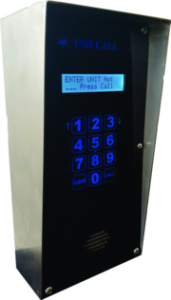
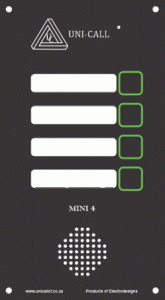
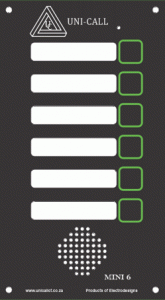
Developed for the unique South African market with uncomplicated remote or onsite programming. Easy Installation, while at the same time being user-friendly, Simplifying access control on a daily basis.
Click and hold the Android App Link button to copy the link at the bottom of this screen.
Tap the google search field at the top and select Paste, then click the link "https://dashboard.unicallct.co.za/app" below with the Unicall Icon.
You will Come to the UNICALL Welcome page.Do Not Verify yet! Click on the 3 dots at the top right of the screen. Scroll to Add to Home screen.
Click on it then label it UniCall App. Next click Add. Now go to your apps and find the UniCall App Icon click on it.
You are now in the Welcome / verification page fill in your phone number and press Continue then wait for the OTP. Fill it in then click the verify button, Now you are Good To go.
PLEASE NOTE your number needs to be added to the intercom first, by managing agent / building manager before you can Add the App.
✅ How to add Link as an App on iPhone
Make sure your default browser is Safari.
Press and hold the Copy App Link button. It will open a UniCall Welcome screen with a "Copy Link" box at the bottom of the screen. Tap Copy Link.
Open Safari and paste the Link in the bottom search field press enter, it will open the number verification page. Do not verify yet!
Tap the 3 dots (...) at the bottom right, tap Share, scroll up to "Add to Home Screen click on it", and label to the icon at the top of the page UniCall App. click Add.
.
Find the new App icon on your phone, Click on it, then fill in your number and press Continue.
OTP page will open Wait for the OTP, fill it in, and you are good to go!
PLEASE NOTE your number needs to be added to the intercom first, by managing agent / building manager before you can Add the App.